


Search Website
Smart Kapp Whiteboards
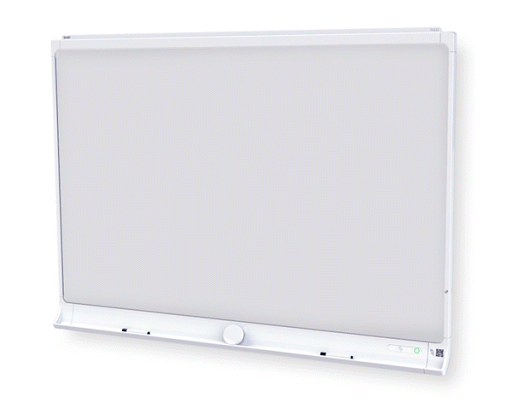
Many Social Science Centre departmental classrooms have been equipped with the Smart Kapp 84 whiteboards (SSC 2322E, 3102, 3227, 3315, 4103, 4105, 4112, 4255, 4317, 4444, 4446, 5220, 5406, 5427, and 5428). These whiteboards do everything the regular whiteboards do, plus so much more!
- Write on the whiteboard in colour or black with dry erase markers as always
- Plug in a USB flash drive and save your content (content is only saved in black)
- Install the SMART kapp app on your Apple or Android device to connect to the board. Then you can
- See the notes on your mobile device
- Save and export your notes
- Invite up to 250 people to join the session
Frequently Asked Questions:
Some markers were provided with the SMART kapp boards but you can use any dry erase markers. For best results, SMART recommends these third-party replacement markers:
- BIC Magic Marker dry erase liquid markers, fine tip
- EXPO low odor fine tip dry erase markers
- Staples Remarx dry erase markers, bullet tip
To use it as a normal whiteboard, simply unplug the AC power adapter and nothing will be captured. Remember to erase the board when you are finished.
Yes, you can use multiple colours, however, the board will only save and share in black.
- Plug in the AC adapter BEFORE writing to the board.
- Connect the USB drive (FAT 32 formatted) to the USB port on the side of the board.
- Wait for the LED lights to stop flashing. Make sure the USB LED is white. If the light is red, the USB stick is unusable.
- Press the Capture (camera) or USB icon on the board.
- You can capture multiple snapshots during a session that will save to one PDF.
- Disconnect the USB drive from the board when you're done saving snapshots.
- Insert your USB Flash Drive in your computer
- Open File Explorer
- Right-click on the device and choose Properties
- Under the General tab, the File System should be FAT32.
- Download the app for your Android device at https://play.google.com/store/apps/details?id=com.smarttech.kapp
- Download the app for your Apple device at https://itunes.apple.com/ca/app/smart-kapp/id860144252?mt=8
- Scan the QR code on the board with your device
- Tap the NPC tag with your device (NFC must be enabled in your device settings
- Connect your mobile device to the board by launching the app and then holding the camera over the QR code.
- Tap the Invite (little person with + symbol) and then select Send Link.
- Select the app you want to use to send the invitation or simply write the link on the board.
- As content appears in your app, it also appears on their screens using the link.
- You have to Capture content using a snapshot for others to be able to save the content. See below.
Content will appear on the app as you work. You may wish to save multiple snapshots of your work during a session.
- Simply press the Capture (camera) icon on the board or in the app.
- The Sessions button in the app will show you how many snapshots have been saved.
- People connected via the link will see a number displayed with the word Snapshots.
- When the session is ended, you will be prompted to Save as Image or Save as PDF
- Tap the Disconnect button at the top left corner of your app, OR
- Press and hold the Bluetooth icon on the board until it turns red.